Scenario 1: Screen Recording Footage Saved on Vision Goggles SD Card
Remove the SD card from the Vision Goggles, then connect it to your computer via an SD card reader or Quick Reader to access the stored files.
Scenario 2: Screen Recording Footage Saved on Vision Goggles Internal Storage
Export via Antigravity app
Upgrade the App to V1.2.0 or later, and it supports exporting the screen recording files of the Vision Goggles to the Antigravity app or the local photo album of the mobile device.
Tips: Only the screen recording files of the Vision Goggles are supported for export, the other types of files stored in the flight goggles (including the Vision memory card) are not supported for export.
Power on the Vision Goggles, connect to the Antigravity app, select "Vision Goggles" from the directory in the top-left corner of the app's album page, then you can view and download the screen recording files of the Vision Goggles in the app. You can choose to download the files to the app or export them to the local album of your mobile device.
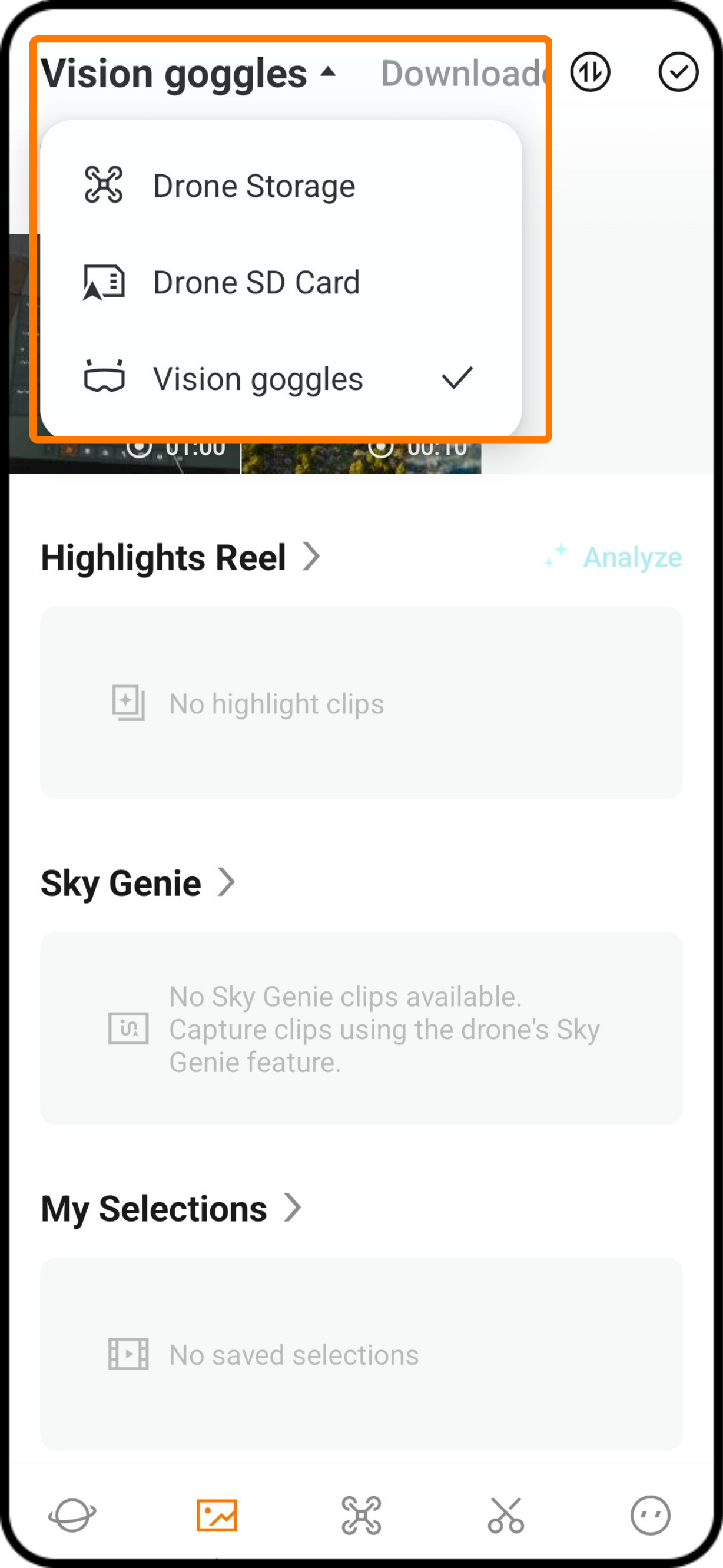
Download Vision Goggles Screen Recordings to the App
Tips: This method only downloads the files to the app, and the files cannot be found in the local gallery of your mobile device.
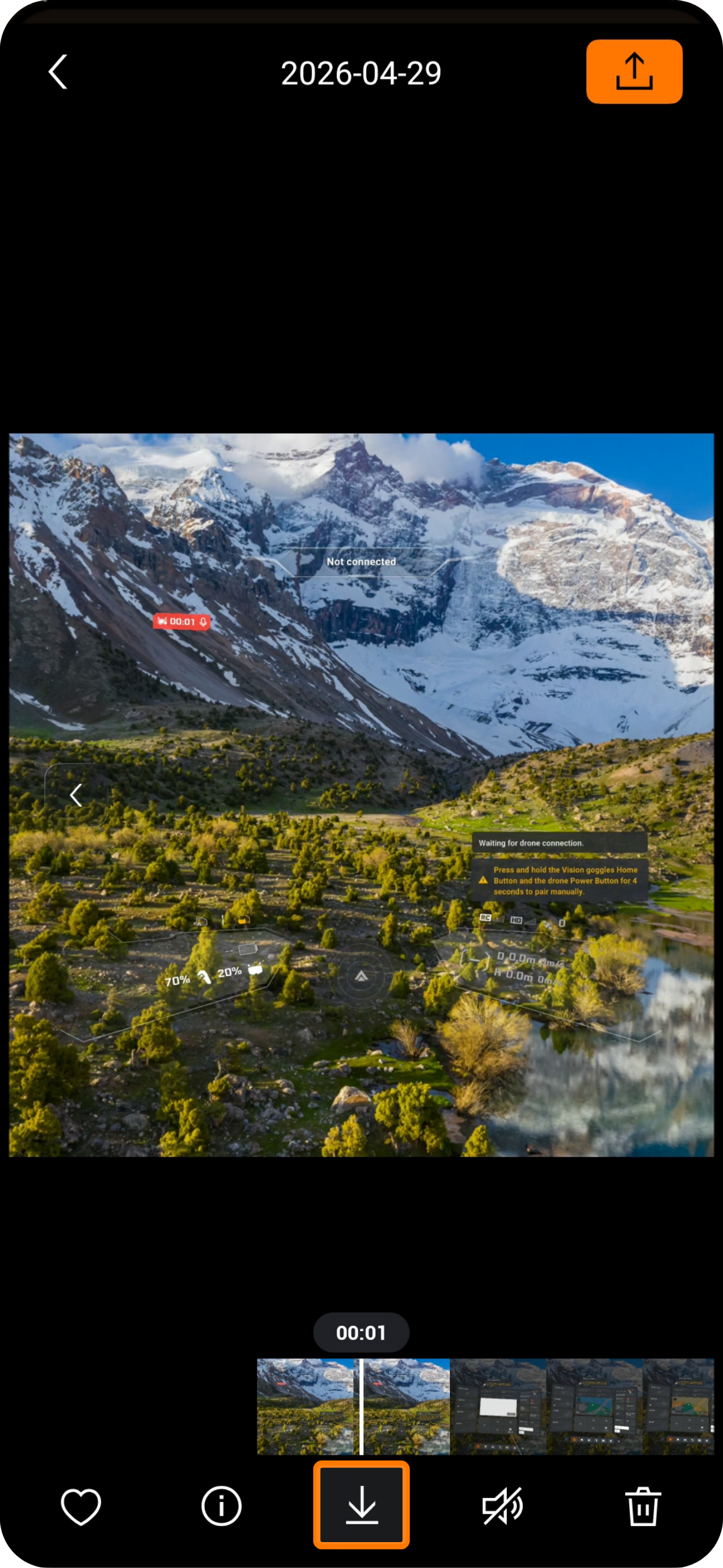
- Single download to the App: Tap the material you want to download on the app's album page > Tap the "Download" icon at the bottom.
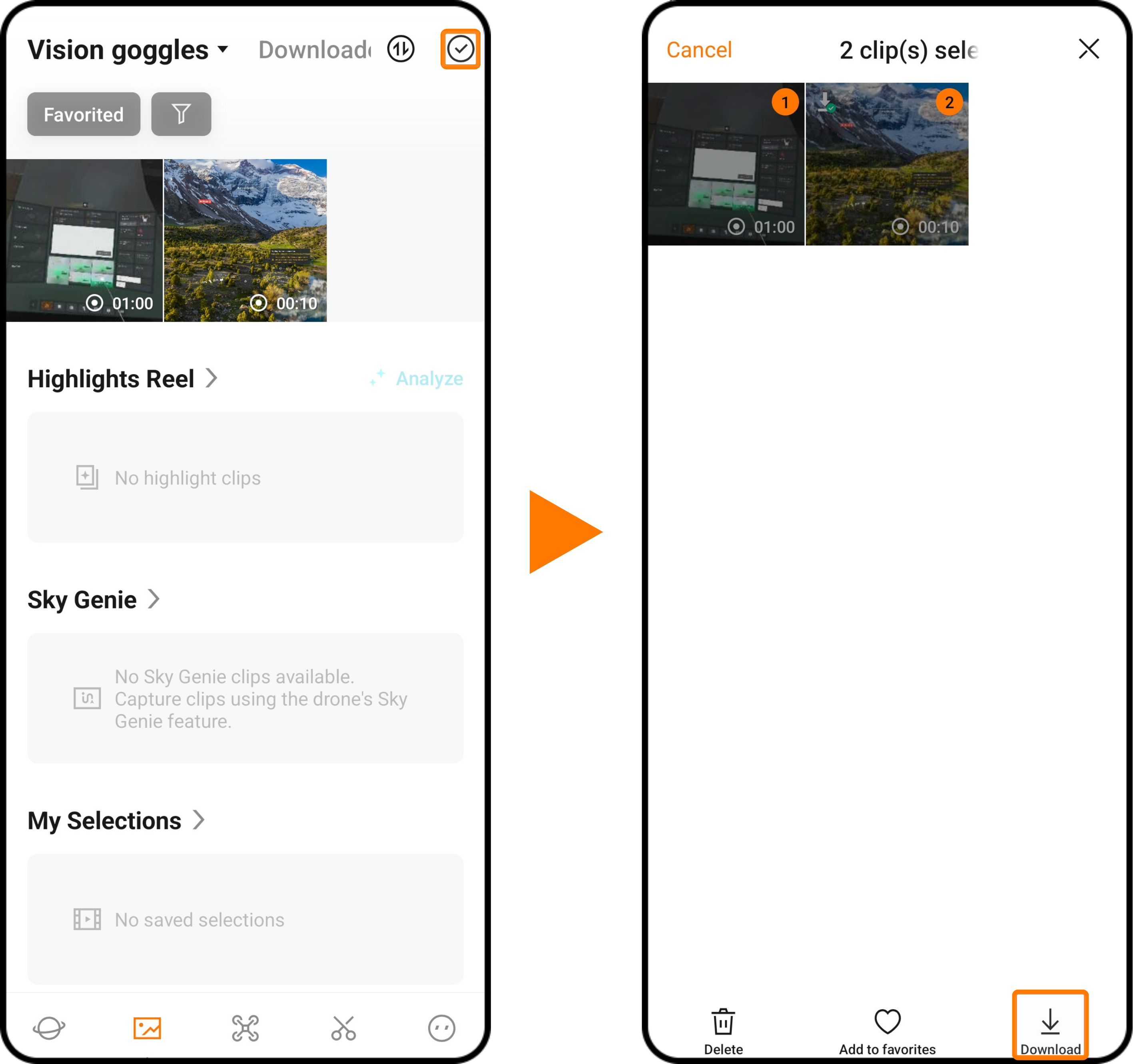
- Batch download to the App: Tap the checkmark icon in the upper‑right corner of the App Album page > Select the recordings you want to download > Tap "Download".
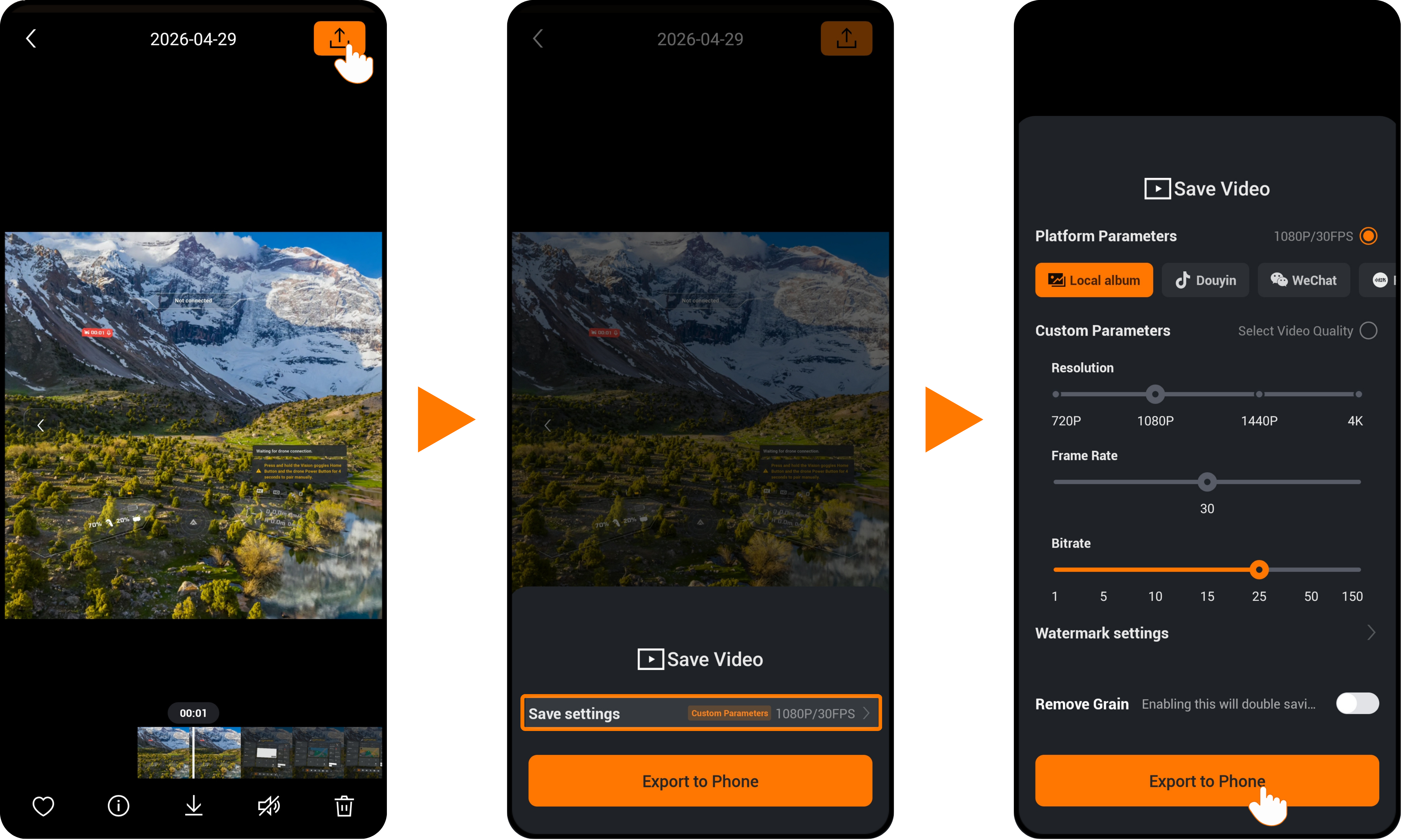
Export Vision screen recording files to the local storage of the mobile device
Tips: After exporting a screen recording this way, the file will be available in your mobile device's local gallery. Batch download is not supported.
- Tap the screen recording file you want to download on the App Album page.
- Tap the "Export" icon in the upper‑right corner of the recording. Tap "Save Settings" to adjust video parameters, where you can modify Platform Parameters, Custom Parameters (resolution, frame rate, bitrate), Watermark Settings, and Remove Grain (enabling noise reduction will double the saving time; For V1.2.2 and later versions, Noise reduction is enabled by default during export. Manual user setting is not required, and the on/off toggle has been removed.).
- Tap "Export to Phone" to save the screen recording file to your mobile device's local storage.
Export via computer
Windows Devices
- Power on the Vision Goggles.
- Connect the Vision Goggles to your computer using the official USB-C Cable. The computer will then detect and access the files stored in the goggles’ internal storage.
Mac Devices
- Open the computer, click on the Apple icon in the upper left corner, click "About This Mac", and confirm the processor/chip version.
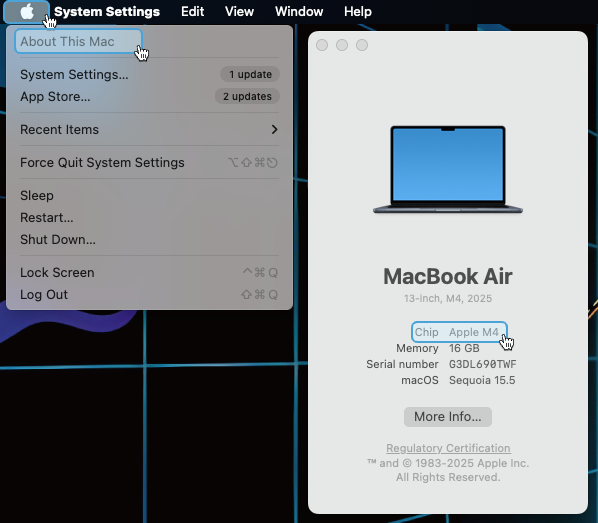
- Download the compatible version of OpenMTP.
- If you are using the M-series processor, you can download it by clicking here.
- If you are using the Intel processor, you can download it by clicking here.
- Install OpenMTP
- Before opening the downloaded OpenMTP, please uninstall any previously installed third-party connection tools (e.g., MacDroid, AndroidFileTransfer)
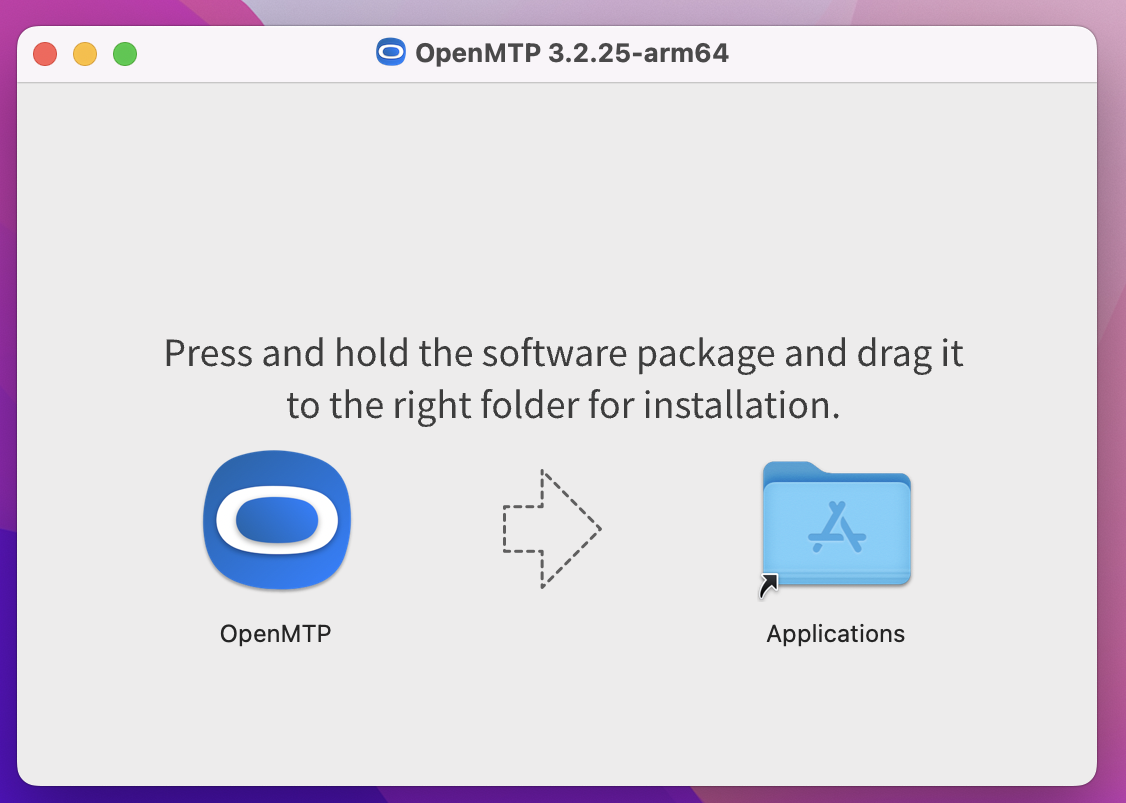
- Open OpenMTP, press and hold the OpenMTP icon and drag it to the Applications folder.
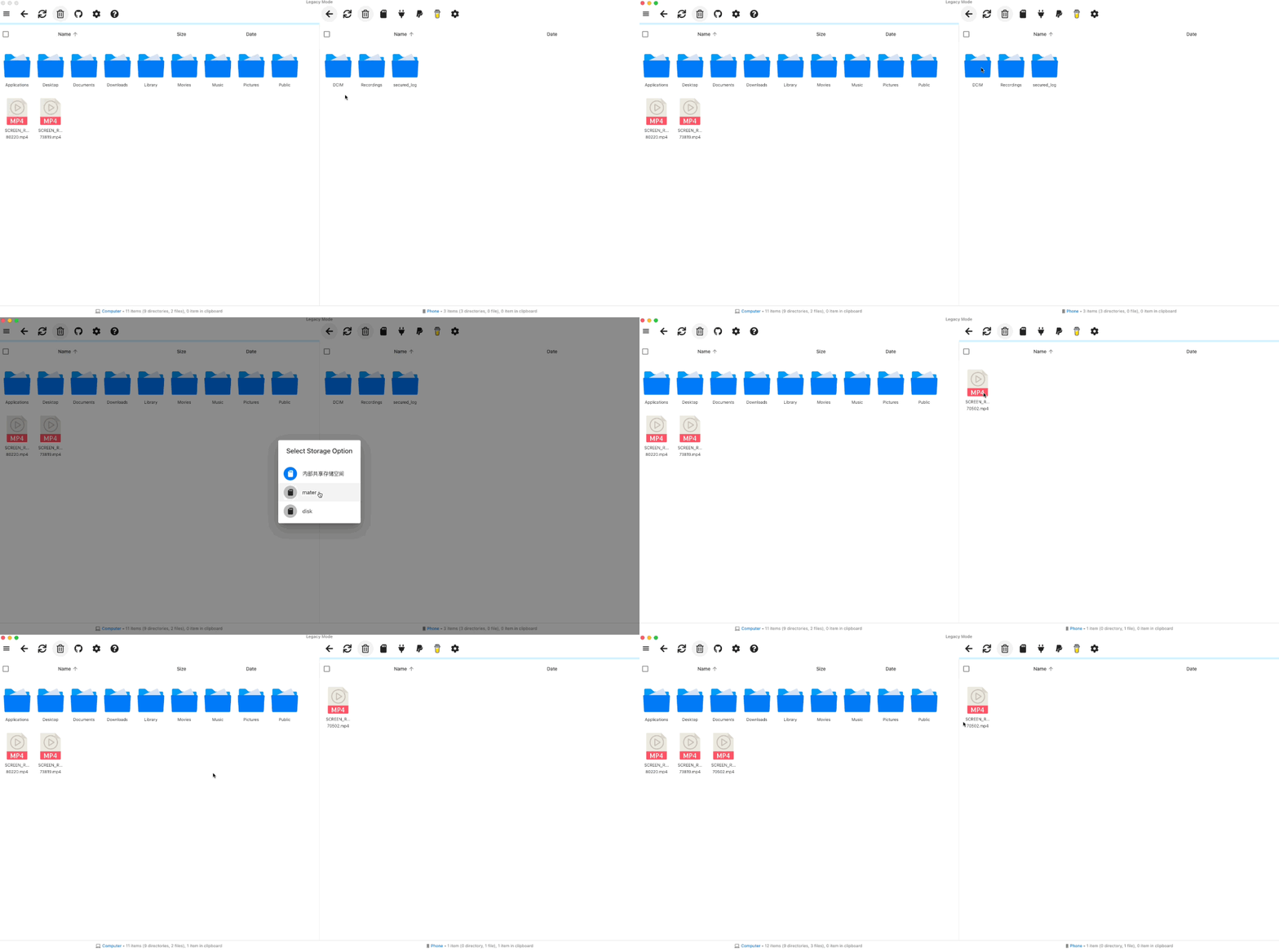
- Open "OpenMTP", turn on the Vision Goggles, connect them to the computer by USB-C cable, and click the refresh icon at the top of the window on the right side of the computer screen (if it fails to display after refreshing, please restart the computer and try again).
- After connecting the Vision Goggles to the computer via a wired connection, when dragging files in OpenMTP, please directly drag the files stored in the Vision Goggles to the left pane (as shown in the figure). Do not drag the files stored in the Vision Goggles to the desktop; otherwise, the files cannot be read properly.
- If you cannot open "OpenMTP", please go to Settings > Security & Privacy, and click "Open Anyway".
Reference for Common Folders (Default Naming)
- Goggles Screen Recording Files: mater\DCIM\ScreenShots
- Goggles Find My Drone Files: Internal Shared Storage\DCIM\Find
- SD Card Screen Recording Files: disk\DCIM\ScreenShots
- SD Card Find My Drone Files: disk\DCIM\Find